ePointer
Draw and annotation on the screen


Solves two major pain points of similar tools:
No interaction while drawing, no drawing while interacting?Messy or deletion-reliant annotation for complex content?
The ePointer is a simple and powerful virtual annotation tool, which supports free drawing, doodling and annotation on any apps. It can be widely used in teaching annotation, remote meeting assistance, online education presentation, illustrated annotation, stock market analysis, etc. With exclusive features like click-through and canvas paginator, you can efficiently enhance expression, collaboration, and interaction without interrupting your workflow.
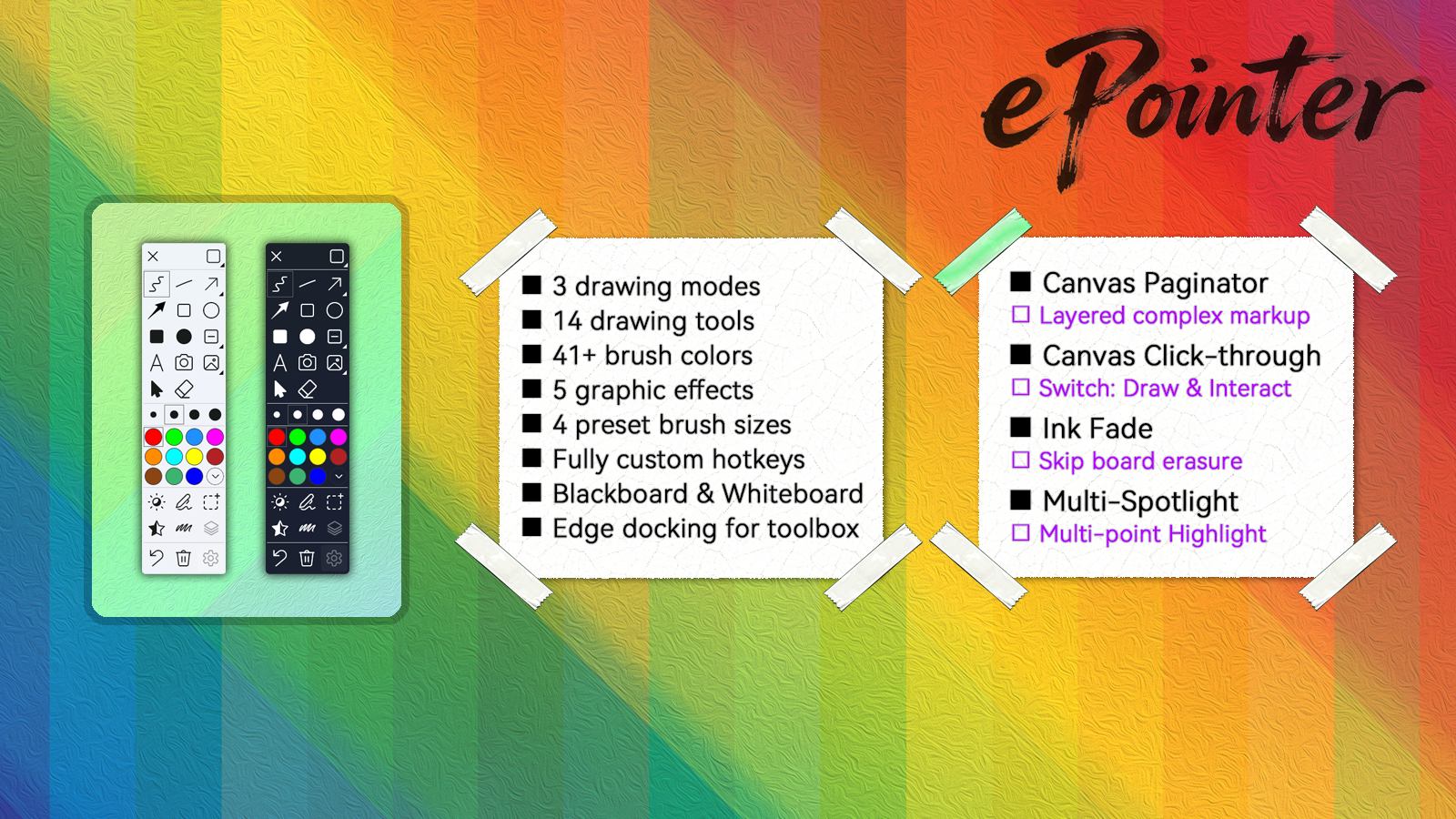
The app provides 3 drawing modes (classic, dynamic, freeze), 14 sets of drawing tools, multiple brush sizes, dozens of selected colors and color panels, 4 graphic effects (shadows, strokes, dotted lines, translucent), Canvas Paginator , multi-spotlight, Ink Fading, multiple visual command modes, blackboard whiteboard and many other features; By Click-through switch, you can easily switch between drawing and interaction, and solve the contradiction between drawing and interaction. Through the powerful Canvas Paginator, layered annotation and overlay display solve the problem of complex annotation clutter. At the same time, it supports regular operations such as re-editing of graphics (adjusting appearance, size, angle, etc. through the handle), copying, cutting, pasting, and undoing, saving and reading annotation data, and saving full screenshots, supporting full shortcut key operations, and fully customizing shortcut keys. The toolbox supports docking at the edge of the screen (automatically hidden display) and does not take up space.
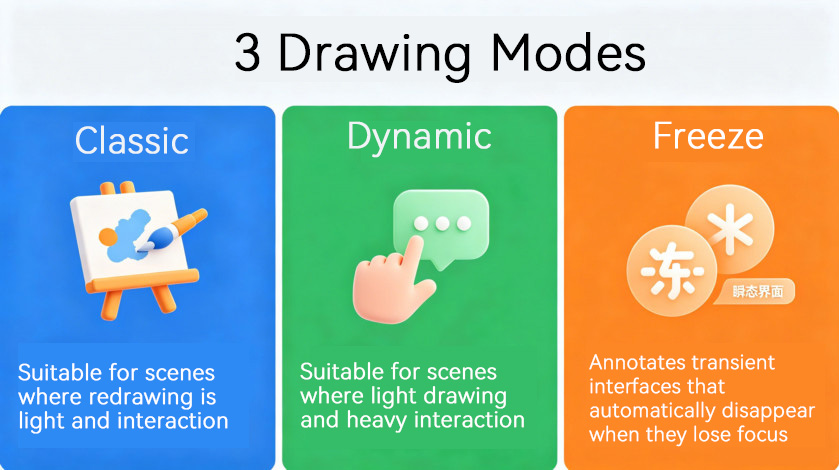
Both Classic mode and Dynamic mode support annotation of animations, videos, games, and other dynamic images.
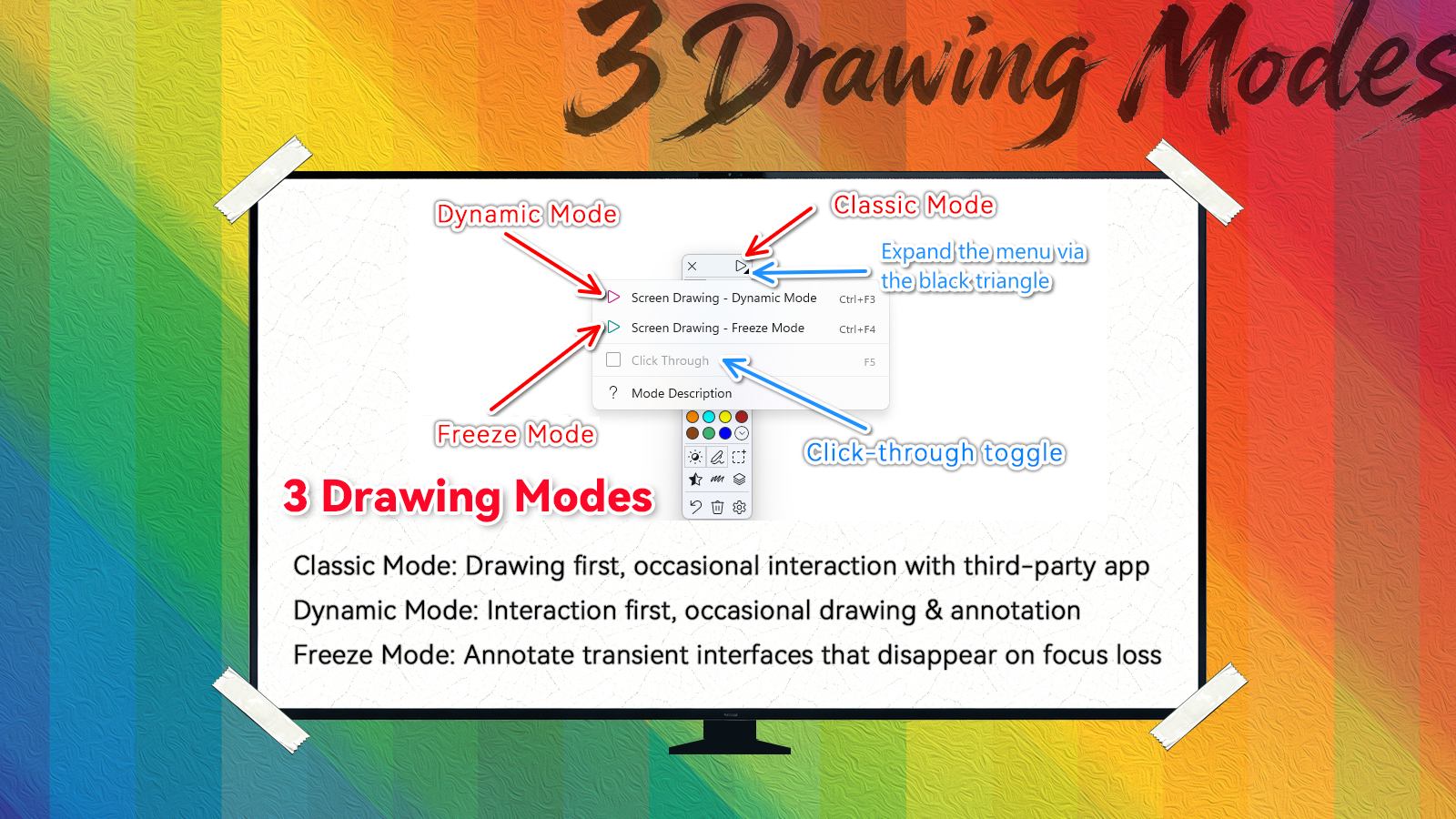
+ In classic mode, you can draw directly on the screen, and interact with third-party software by permanently or temporarily turning on the Canvas Click-through feature.
+ In smart mode, you can directly interact with third-party software, and you can draw on the screen by permanently or temporarily turning off the Canvas Click-through feature.
+ Freeze mode is a mode specially used for interfaces that will automatically disappear after losing focus, such as menus, etc., which will be automatically hidden once the focus shifts, and freeze mode will freeze the screen state when started, so as to realize the annotation of transient interfaces, but therefore it does not support annotation of dynamic images.
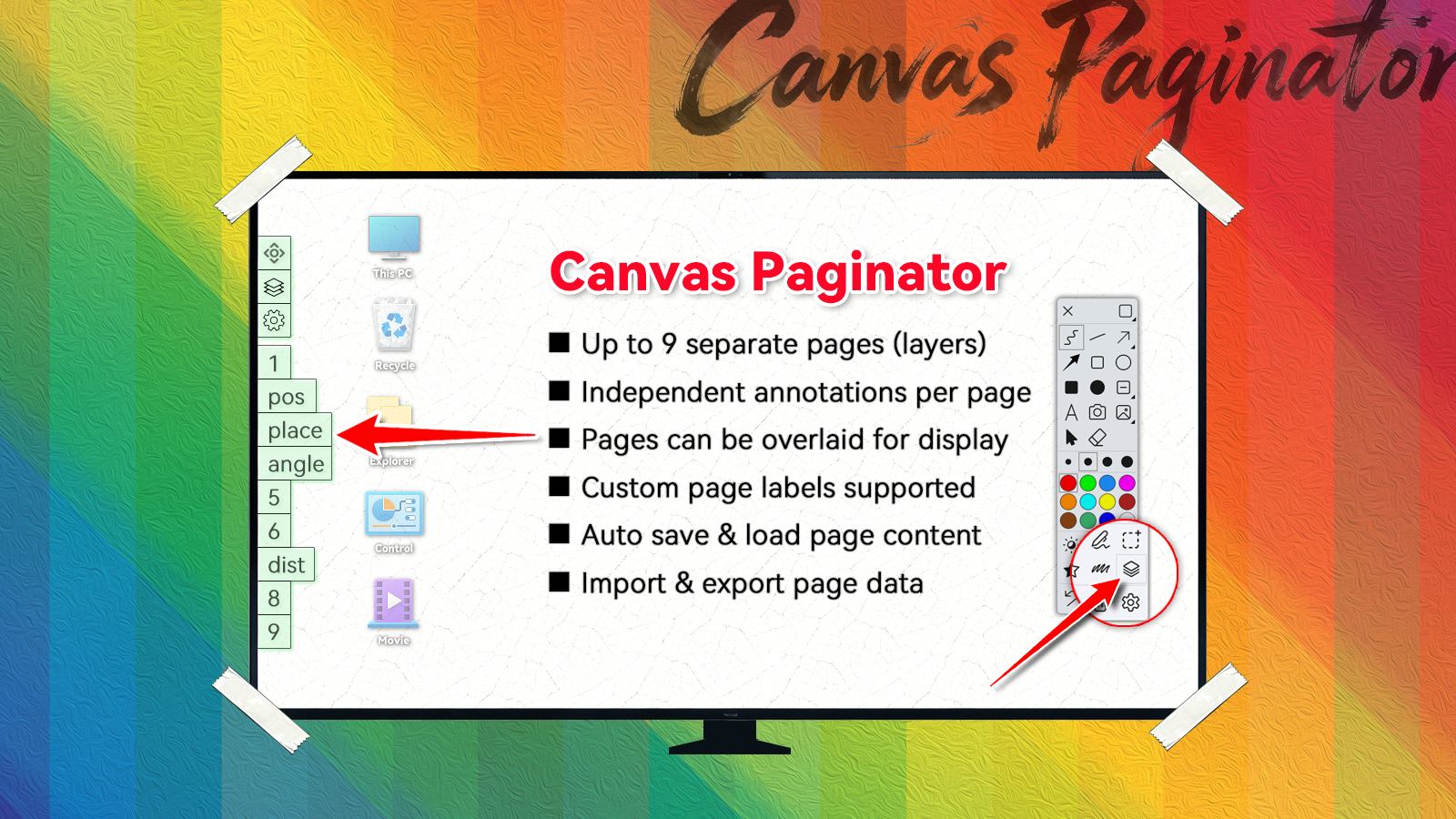
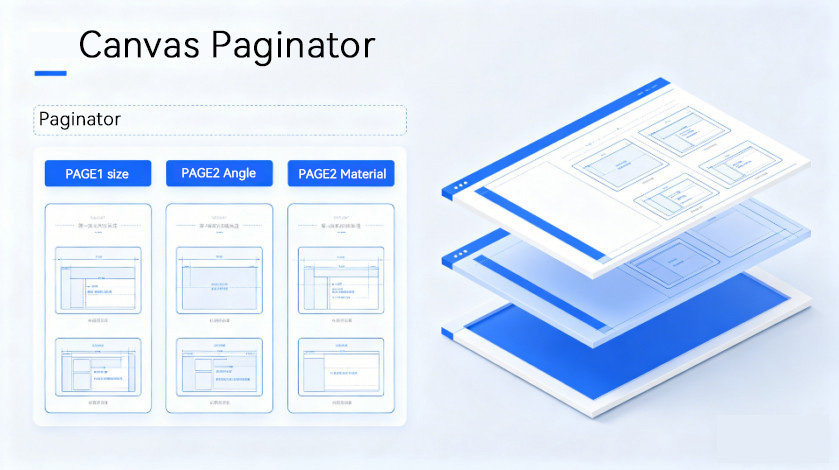
The Canvas Paginator can paginate the annotation content, and the annotation of each page is independent, such as the dimension of the first page, the angle of the second page, etc., and finally, you can choose to overlay some or all parts of the page to form a complete and complex annotation result. Through the Patinator, the explanation and annotation process can be clearly organized, and the annotation results can be seen at a glance.
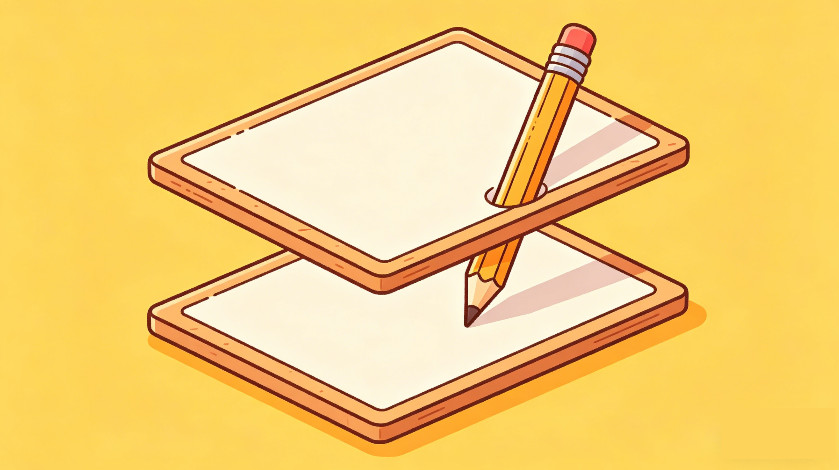
During the explanation or demonstration process, it is often necessary to draw and annotate on the screen, as well as interact with third-party software. The ePointer provides two ways to easily switch between drawing and interaction at will, this switch does not need to exit the painting mode, will not affect the content that has been marked, unless manually cleared, so it will not interrupt your workflow.
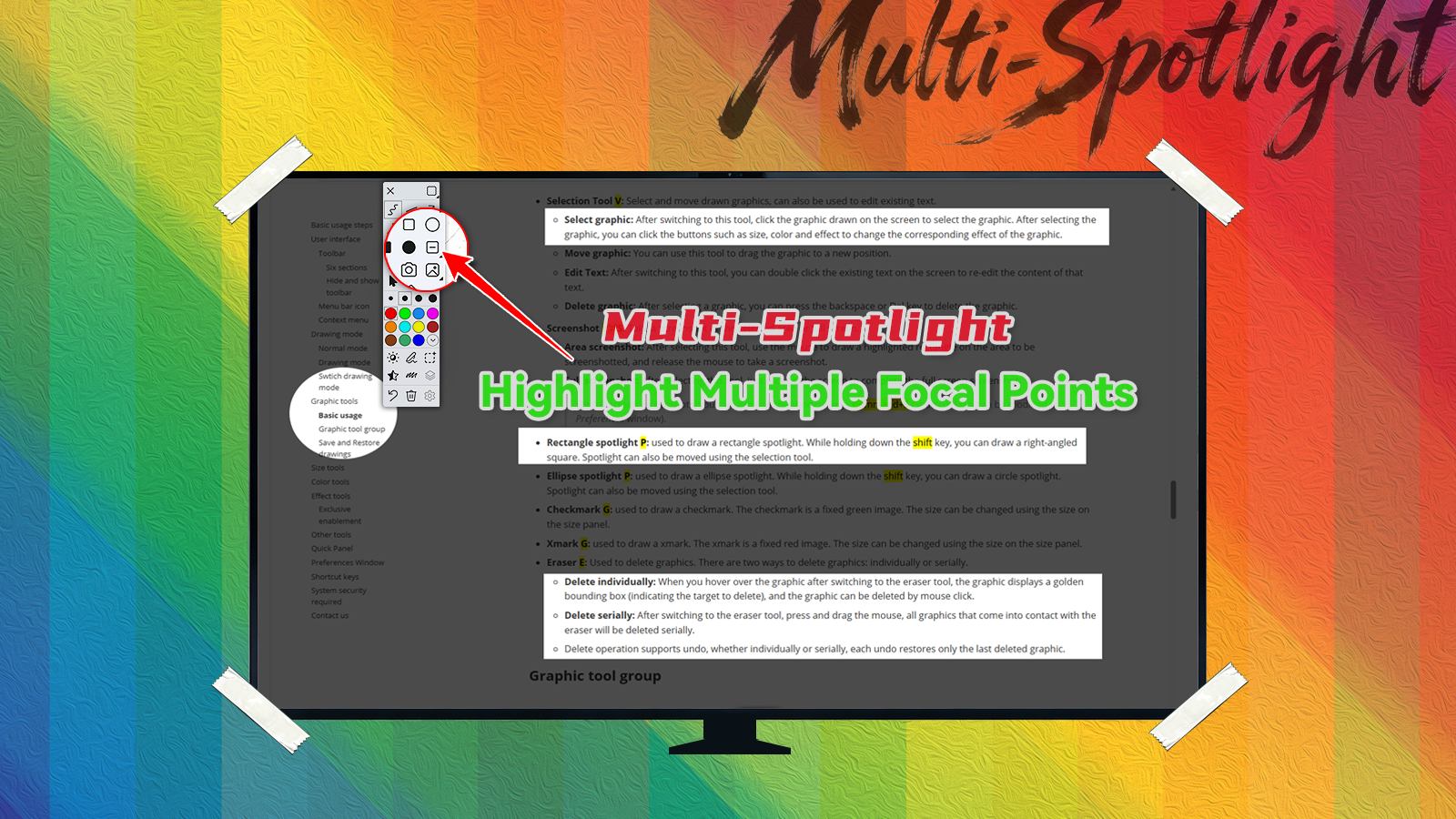
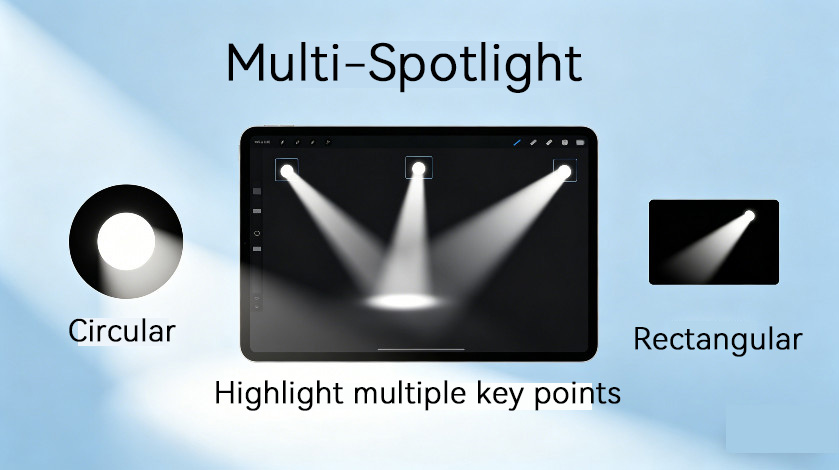
The spotlights of the ePointer are divided into circular and rectangular shapes, and the spotlights are usually used to highlight the key content on the screen. The Spotlight tool allows you to draw one or more lights on the screen at the same time to highlight multiple points of interest. Drawn spotlights can be readjusted in appearance, size, position, etc. with the Selection tool.
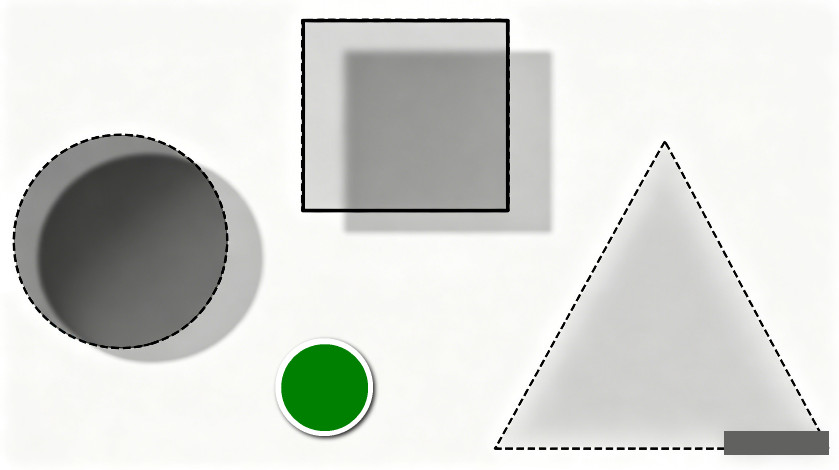
The ePointer can add four graphic effects to the drawn graphics, such as shadows, strokes, dotted lines, and translucency, which can be used alone or superimposed; In addition to increasing the beauty of graphics, graphic effects can also cope with different drawing needs.
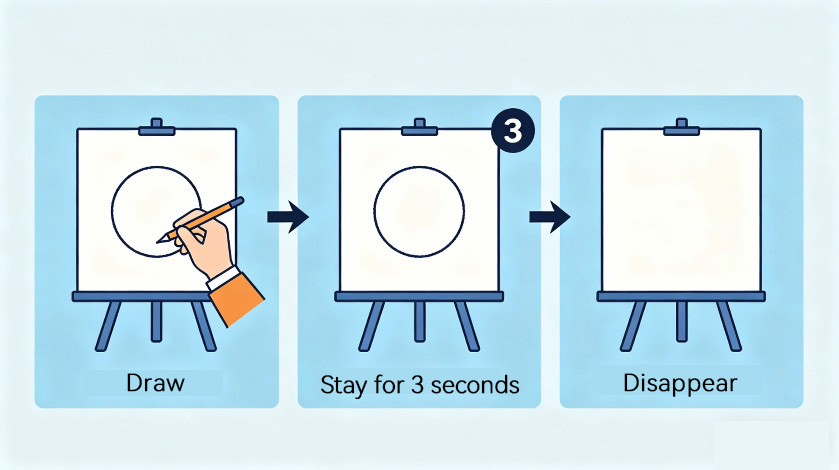
The Ink Fading allows the drawn graphics to automatically disappear after a certain period of time, eliminating the need to "wipe the blackboard" step in.
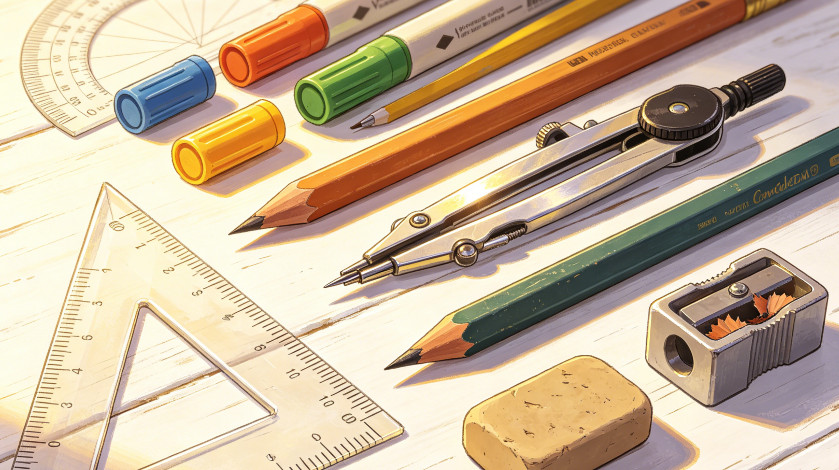
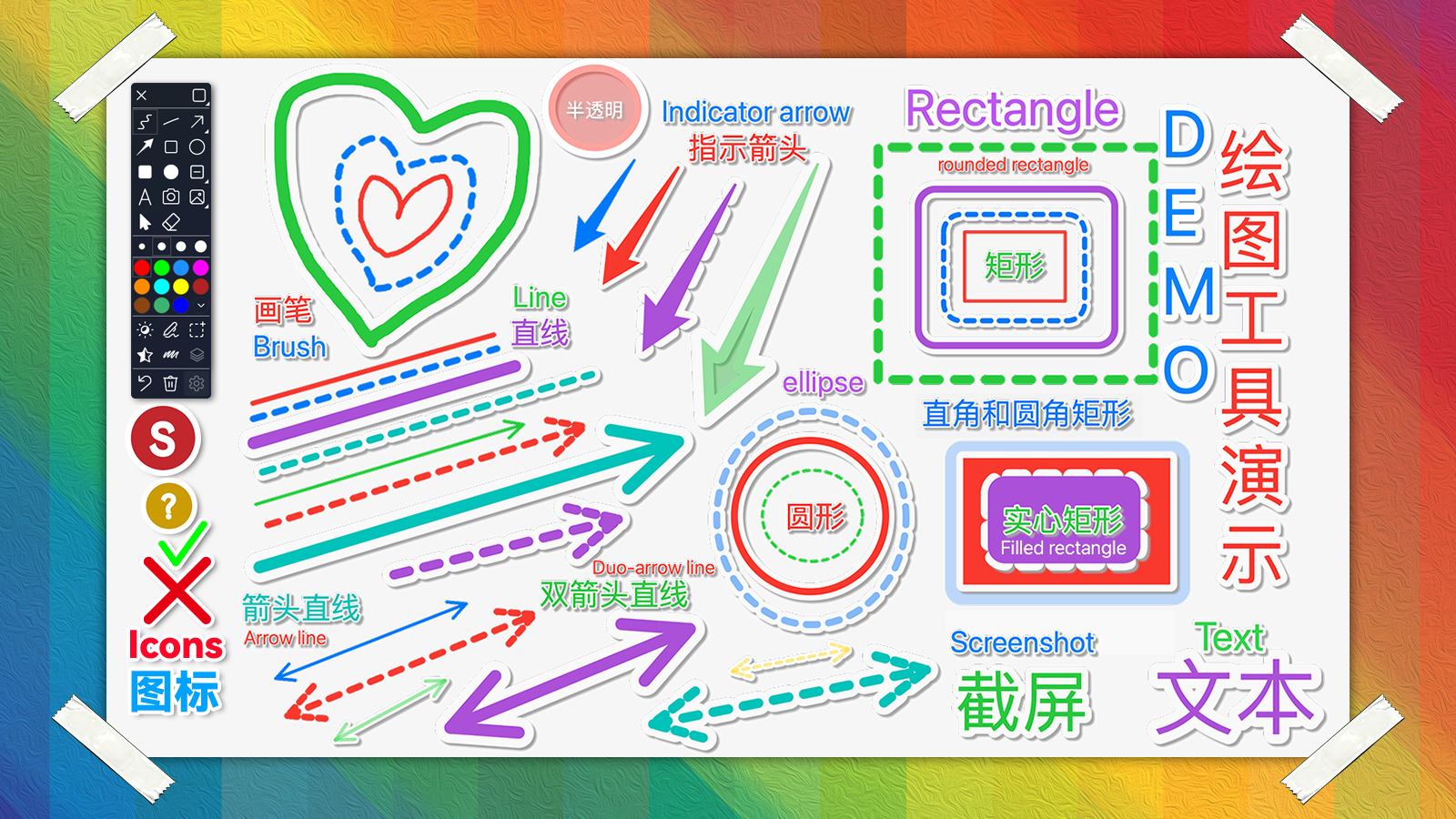
The ePointer provides a wealth of drawing tools, including free curves, straight lines, arrow straight lines (single arrows, double arrows), indicator arrows, rectangles, circles, solid rectangles, solid circles, texts, multi-spotlights, icons, screenshots, selection tools, erasers, etc., and the same group of tools can be switched with the Tab key.
Use the Picking tool to readjust the appearance, size, position, color, effect, and more of the drawing drawing.
The macOS version also provides tools such as area screenshots, magnifiers, and preset graphics.
Dozens of selected colors are provided, whether it is dark or bright backgrounds, to meet the needs of drawing; At the same time, you can also set shortcuts for 10 colors through custom shortcuts for quick switching.
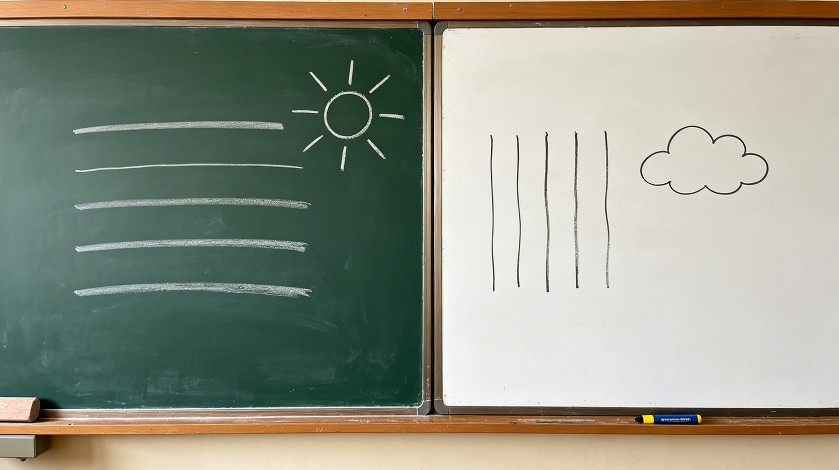
The blackboard and whiteboard of the screen electronic teaching whip each provide 9 paginations, which is equivalent to 18 blackboard whiteboards. The annotated content in each tab is automatically saved and loaded, and the content in the tab is also supported for overlay display and data export.
The on-ePointer provides full shortcut operation, and almost all shortcuts are customizable.
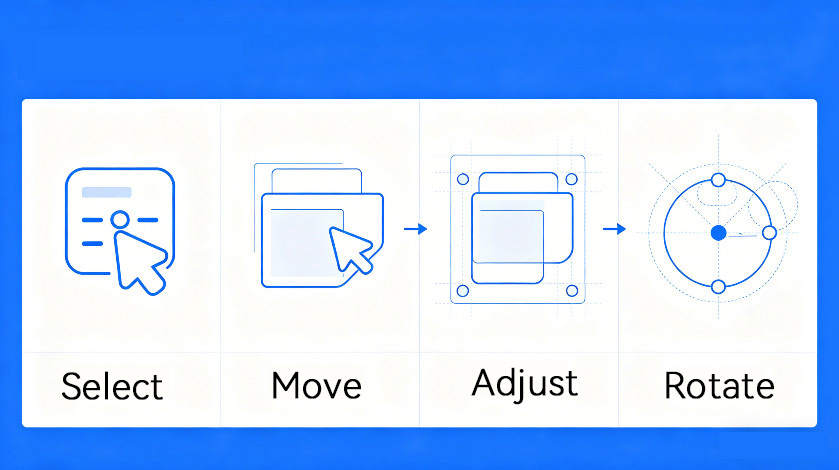
Use the selection tool to move or re-edit the drawn graphics, including resetting the color, effect, size, etc. of the graphics, and readjusting the appearance, scale, angle, etc. of the graphics through the adjustment handles of the graphics. At the same time, it supports single and multiple selections of graphics, and supports regular operations such as copying, cutting, pasting, and undoing graphics.
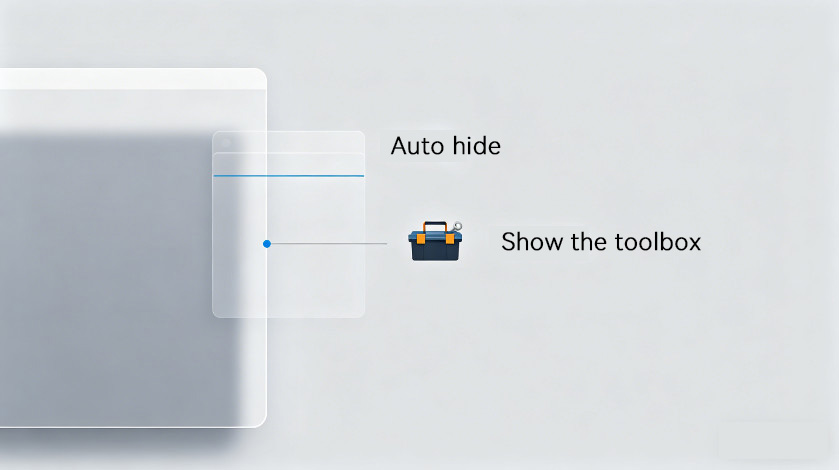
Drag the toolbox to the edge of the screen to automatically hide the toolbox into the edge, and when the mouse slides over the edge again, the toolbox will automatically appear.
In addition, double-clicking on the blank space in the title bar of the toolbox can minimize the toolbox and reduce the screen occupation.
Note that there may be some featureal differences between the macOS version and the Windows version, and the downloaded software shall prevail
Any opinions, suggestions or feedback can be directed to us at: [email protected]